
Summary Scheduling Operations Agent expands scheduling optimization in Dynamics 365 Field Service with interactive, batch, and recurring approaches. Teams can define their scheduling scope and priorities, validate results through on-demand runs, and then automate proven configurations using recurrence. This provides a practical path from targeted dispatcher assistance to repeatable, automated planning.
Not every scheduling problem needs the same approach. Sometimes a dispatcher needs to adjust a few technicians’ schedules after a cancellation or an urgent request. Sometimes an entire territory needs planning. And when the team has refined a scheduling approach that consistently produces useful results, it just needs to be run on a set recurrence schedule instead of relying on someone to start it each day.
The latest preview capabilities in Scheduling Operations AgentforMicrosoft Dynamics 365 Field Service support all three. In this October update, we’re highlighting how to use multi-resource optimization, batch scheduling plans, and recurring optimization together—and where to start.
Schedule manually, and get assistance when plans change
If your dispatchers mainly build schedules manually, interactive optimizations fit into the way they already work. You don’t need to automate the whole operation to benefit from optimization.
Imagine it’s late morning. One technician is running behind, another has a cancellation, and an urgent job has arrived nearby. Rather than rearranging bookings across several schedules by hand, the dispatcher can select up to five resources and ask the agent to suggest a better arrangement. Interactive optimizations are best used for resources working in the same geographical area, or those who take on similar work.
Choose the affected resources, a relevant view of open requirements, and a scheduling goal. Based on those selections, Scheduling Operations Agent generates a suggested schedule for the dispatcher to review before applying changes.
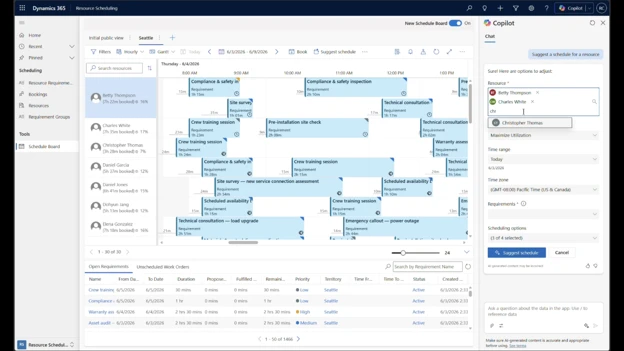 Figure 1. Choose the resources you want to optimize together. Interactive optimization supports up to five resources.
This remains an on-demand tool: the dispatcher decides when help is needed, reviews the suggestion, and stays in control of the schedule.
Plan across a team or territory, and learn what works
When the question becomes “How should we schedule tomorrow’s work across this team?”, batch optimization in Scheduling Operations Agent is a better fit.
A batch scheduling run can consider a larger group of resources and list of requirements, for example, a territory’s technicians and unscheduled backlog. Instead of selecting everything again for each run, you save the configuration in a scheduling plan.
We recommend starting with on-demand batch runs while you configure and refine the scheduling plan. This gives you time to validate the plan before automating optimizations with a recurrence pattern and applying results automatically.
Define the work you want to optimize
Start with a scope: the resources, open requirements, and existing bookings you want the agent to consider.
For a regional service operation, that might mean one territory’s technicians, its outstanding requirements, and the bookings you’re comfortable allowing Scheduling Operations Agent to change. You can build queries from existing views or define your own filters.
 Figure 2. Define which resources and work belong in the run, including how existing bookings participate.
Define your scheduling priorities
Next, select or create a scheduling goal.
Different operations prioritize different scheduling objectives. One team might give the most weight to Schedule High Priority Requirements First to complete urgent work. Another might favor Maximize Overall Resource Utilization and Minimize Travel Time. An operation with established customer commitments might place more emphasis on Prefer Existing Bookings.
Custom goals let you weight these objectives and configure constraints such as matching skills, territories, and time windows.
 Figure 3. Choose the outcomes that matter to your operation and set their relative importance.
Start with a small number of relevant objectives. Avoid making one objective overwhelmingly dominant unless that trade-off is intentional. Make incremental changes and compare the results so you can understand how each adjustment affects the schedule.
You’ll typically want to keep Maximize Overall Resource Utilization or Minimize Travel Time as your lowest ranked objectives. If you set these objectives higher than the others, they can force the others to not have any effect–for example, if minimizing travel time is weighted higher than scheduling high-priority work, lower priority work with less travel time will be scheduled before higher priority work.
Create and refine your scheduling plan
A scheduling plan combines the scope and goal with the time period that you want to optimize and the way results are applied.
Begin with Review before apply. Run the plan, inspect the suggested schedule and routes, and look at any requirements that remain unscheduled.
 Figure 4. Save a repeatable configuration and run it on demand while you refine the results.
Ask practical questions: Is the right work being scheduled? Is travel reasonable? Are important appointments staying in place? Are requirements being excluded because of missing skills, unsuitable time windows, or incorrect data?
Not every unexpected result calls for different weights. Resource calendars, locations, requirement durations, priorities, and booking controls all affect the outcome. Refine those inputs alongside the goal, then gradually expand the scope once the results meet your expectations.
Automate your scheduling plans with recurrence
When you’ve found a configuration that produces useful results consistently, recurrence in Scheduling Operations Agent lets you run that plan automatically.
You can keep Review before apply, with runs starting automatically but a dispatcher approving the result. Or choose Apply automatically when you’re ready for the plan to apply its changes without that manual step.
These are separate decisions: automating when a plan runs doesn’t require automating approval of its results.
 Figure 5. Set when the plan runs and review the recurrence description. The demo values shown are illustrative, not a recommended cadence.
Choose the right cadence for recurring optimization
A useful starting point is broader planning overnight, with more targeted adjustments during the day. Not every operation needs both.
| Operating pattern | Suggested starting approach |
| Most work is known before the working day | Run overnight or early in the morning to plan the next working day, after the relevant work and availability updates are in place. |
| New work and cancellations arrive throughout the day | Add selected intraday runs, for example late morning and early afternoon, focused on work that is still practical to rearrange. |
| Disruptions are occasional and affect only a few technicians | Keep using interactive optimization when needed rather than adding frequent recurring runs. |
These are starting patterns to evaluate, not product defaults. A more frequent run is useful only if enough has changed to justify another optimization.
Keep critical bookings stable during optimization
For intraday optimization, consider starting the optimization window an hour or two ahead, rather than repeatedly rearranging imminent appointments. Use Do not move and booking-level restrictions to protect commitments that must remain fixed. The Prefer Existing Bookings objective can reduce unnecessary movement, but it’s a preference, not a substitute for a hard restriction.
Pay attention to the distinction between run time and optimization time range. A plan might run at 2:00 AM. to optimize work beginning at 8:00 AM. If its results require review, the dispatcher must apply them before that optimization window starts; review results expire at the start of the window or after 72 hours, whichever comes first.
Leave enough time for runs to finish, and stagger plans that affect the same resources or bookings. One plan cannot start another request while its previous request is still solving or applying.
Finally, consider consumption as well as scheduling quality. The minimum recurrence interval is 30 minutes, but that’s a supported limit, not a recommendation to reoptimize every team twice an hour. Start less frequently and increase the cadence when the operational benefit warrants it.
What Scheduling Operations Agent supports today
During public preview, Scheduling Operations Agent for Dynamics 365 Field Service supports interactive optimization for up to five resources, 120 combined bookings and open requirements, and an optimization window of up to 72 hours. Batch optimization supports up to 50 resources, 4,000 combined bookings and open requirements, and a window of up to 14 days.
Capacity affects the interactive resource count, and additional per-resource limits apply. Current exclusions include equipment, pool, and facility resources; requirement groups; and multiday requirements associated with requirement-detail records. A planning window spanning several days does not mean that multiday requirements are supported.
See the current limits and supported scenarios for the Scheduling Operations Agent when choosing your pilot scope. Recurrence is time-based; it doesn’t continuously monitor and react to scheduling events.
Get started with Scheduling Operations Agent
Use interactive optimization to help a dispatcher resolve a focused disruption. Use an on-demand batch plan to work through a larger scheduling problem and refine the outcome. And finally, put the proven configuration on a recurrence. Start with the approach that fits your scheduling needs today, then build from there as you refine what works for your operation.
Explore the Scheduling Operations Agent in Dynamics 365 Field Service and guidance for tuning optimization results.
Scheduling Operations Agent remains in public preview and availability varies with regional rollout.